K_Unity基本操作
操作
Bilibili:BV1XZ4y1G7Me
安装
首先是安装,安装的话去Unity官网下载一个UnityHub,然后在UnityHub的安装界面点击安装,会列出最新的几个稳定的版本,选择自己所要安装的版本点击下一步,会列出捆绑安装的一些工具,默认的话会附带安装一个VStudio,不同版本的Unity也会附带不同版本的VStudio,当然也可以选择不装,之后使用自己喜欢的版本或工具编写代码。
如果之前没有安装默认的VStudio,这时需要在编辑->首选项->外置工具里 选择自己使用的编译器。
链接
首先在UI界面创建好自己所需要的元素,然后在下方的Project窗口右键新建一个脚本,在脚本里声明好之前所创建的那些元素,这里注意要加上public,否则无法被UI读到。
脚本的生命周期是必须要依托于所创建的对象的,所以可以新建一个空的Object或使用比较公有的一个元素,把脚本拖动到元素上,这个时候在元素的属性里就会多出一个Script,之前在脚本里所创建的变量就会显示出来,这时候就可以直接把元素拖动到这个框里,这样就相当于我们在脚本里创建的对象与UI里的元素链接起来了。
事件
在脚本里创建好函数,像之前那样把脚本附属在元素上,然后在Button属性里的OnClick新建,把附属脚本的元素拖动到框里,这时就可以在Function里面找到在脚本里所创建的函数,如果函数有参数的话,在这里可以自定义返回一个定值,这种方法适合多个元素公用一个函数的情况。
比如这里有很多个按钮,他们公用一个函数,通过返回不同的值就可以区分出当前点击的是哪一个按钮。
参考自:UGUI中Button添加事件大总结(有参,无参,动态) - 吸血鬼1124 - CSDN
传值
两个场景之间传值有很多种方法,这里的话是新建一个static类,里面创建static变量,这样就可以在第一个场景里赋值,然后在第二个场景里读取。
其他
Unity 用户手册 (2019.4 LTS)
编译问题
如果有提示 错误,需要在文件->Player Setting->Player->Other Setting里找到Api Compatibility Level改为4.x就好。
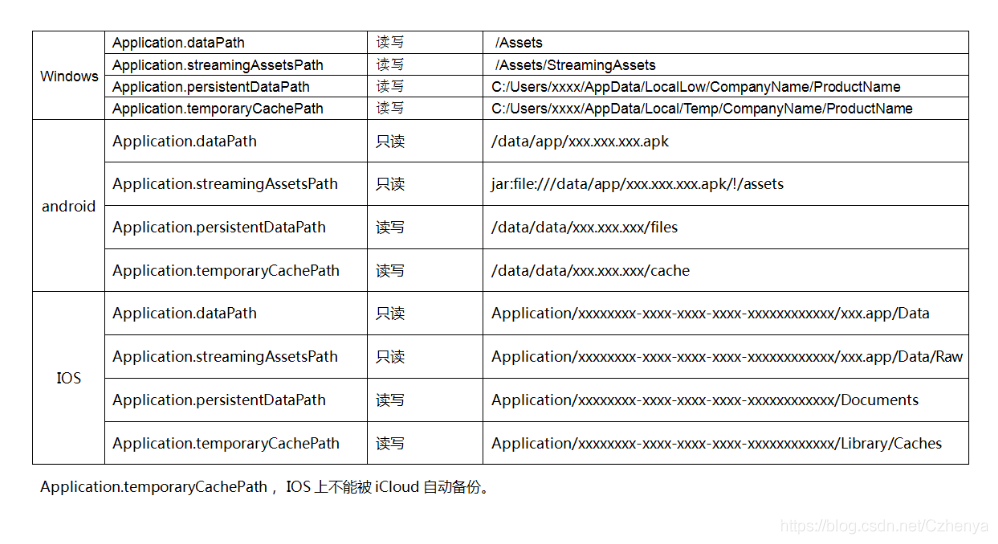
Application各种路径在终端的本地路径
dataPath:返回程序的数据文件所在的文件夹的路径(只读)。返回路径为相对路径,一般是相对于程序安装目录的位置。不同游戏平台的数据文件保存路径不同。
StreamingAssetsPath: 此属性用于返回数据流的缓存目录,返回路径为相对路径,适合设置一些外部数据文件的路径。(只读)
PersistentDataPath:返回一个持久化数据存储目录的路径,可以在此路径下存储一些持久化的数据文件。对应同一平台,在不同程序中调用此属性时,其返回值是相同的,但是在不同的运行平台下,其返回值会不一样。
temporaryCachePath:此属性用于返回一个临时数据的缓冲目录(只读)。对于同一平台,在不同程序中调用此属性时,其返回值是相同的,但是在不同的运行平台下,其返回值是不一样的。
persistentDataPath和temporaryCachePath的返回值一般是程序所在平台的固定位置,适合程序在运行过程中产生的数据文件。
PC:
Application.dataPath : /Assets
Application.streamingAssetsPath : /Assets/StreamingAssets
Application.persistentDataPath : C:/Users/xxxx/AppData/LocalLow/CompanyName/ProductName
Application.temporaryCachePath : C:/Users/xxxx/AppData/Local/Temp/CompanyName/ProductName
Android:
Application.dataPath : /data/app/xxx.xxx.xxx.apk
Application.streamingAssetsPath : jar:file:///data/app/xxx.xxx.xxx.apk/!/assets
Application.persistentDataPath : /data/data/xxx.xxx.xxx/files
Application.temporaryCachePath : /data/data/xxx.xxx.xxx/cache
IOS:
Application.dataPath : Application/xxxxxxxx-xxxx-xxxx-xxxx-xxxxxxxxxxxx/xxx.app/Data
Application.streamingAssetsPath : Application/xxxxxxxx-xxxx-xxxx-xxxx-xxxxxxxxxxxx/xxx.app/Data/Raw
Application.persistentDataPath : Application/xxxxxxxx-xxxx-xxxx-xxxx-xxxxxxxxxxxx/Documents
Application.temporaryCachePath : Application/xxxxxxxx-xxxx-xxxx-xxxx-xxxxxxxxxxxx/Library/Caches
Mac:
Application.dataPath : /Assets
Application.streamingAssetsPath : /Assets/StreamingAssets
Application.persistentDataPath : /Users/xxxx/Library/Caches/CompanyName/Product Name
Application.temporaryCachePath : /var/folders/57/6b4_9w8113x2fsmzx_yhrhvh0000gn/T/CompanyName/Product Name
屏幕自适应
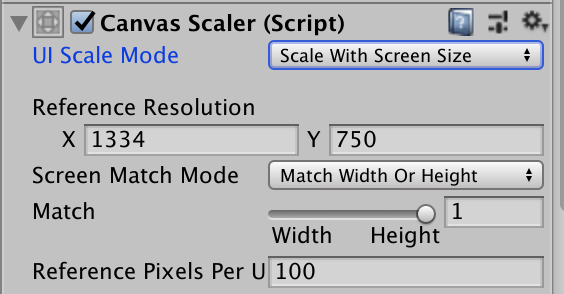
在Canvas Scaler(Script)面板中,有个UI Scale Mode选项卡,可以选Scale With Screen Size(默认为Constant Pixel Size),意思是根据实际屏幕的尺寸来自动调节画布缩放因子Scale Factor,选择后要设置一个参考尺寸,下面有个Match选项,可以选择是以高度还是宽度为参考,如下图所示:
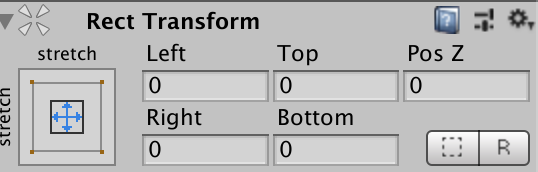
然后对不同的UI设置合适的锚点。
跳转场景
Application.LoadLevel (1);using UnityEngine.SceneManagement;
SceneManager.LoadScene(“SceneName”, LoadSceneMode.Single);
//Single:Closes all current loaded Scenes and loads a Scene.
//Additive:Adds the Scene to the current loaded Scenes.注意要在Build Setting里加上Scene。
存档
使用Newtonsoft.Json类库,整理IOHelper类。Code:IOHelper
/**
 * Unity3D数据持久化辅助类
 * 作者:秦元培
 * 时间:2015年8月14日
 **/

using UnityEngine;
using System.Collections;
using System;
using System.IO;
using System.Text;
using System.Security.Cryptography;
using Newtonsoft.Json;

public class IOHelper : MonoBehaviour
{
    /// <summary>
    /// 判断文件是否存在
    /// </summary>
    public static bool IsFileExists(string fileName)
    {
        return File.Exists(fileName);
    }

    /// <summary>
    /// 判断文件夹是否存在
    /// </summary>
    public static bool IsDirectoryExists(string dirpath)
    {
        return Directory.Exists(dirpath);
    }

    /// <summary>
    /// 列出存档文件
    /// </summary>
    public static string[] GetDirectoryFiles(string dirpath)
    {
        //返回值会带路径
        //return Directory.GetFiles(dirpath);

        DirectoryInfo directory = new DirectoryInfo(dirpath);
        FileInfo[] files = directory.GetFiles("*.olSave", SearchOption.TopDirectoryOnly);
        string[] filesName = new string[files.Length];
        for (int i_Files = 0; i_Files < files.Length; i_Files++)
        {
            //只获取文件名不带后缀
            filesName[i_Files] = files[i_Files].Name.Replace(".olSave", "");
        }
        return filesName;
    }

/// <summary>
/// 创建一个文本文件
/// </summary>
/// <param name="fileName">文件路径</param>
/// <param name="content">文件内容</param>
public static void CreateFile(string fileName, string content)
    {
        StreamWriter streamWriter = File.CreateText(fileName);
        streamWriter.Write(content);
        streamWriter.Close();
    }

    /// <summary>
    /// 创建一个文件夹
    /// </summary>
    public static void CreateDirectory(string dirpath)
    {
        //文件夹存在则返回
        if (IsDirectoryExists(dirpath))
            return;
        Directory.CreateDirectory(dirpath);
    }

    public static void SetData(string fileName, object pObject)
    {
        //将对象序列化为字符串
        string toSave = SerializeObject(pObject);
        //对字符串进行加密,32位加密密钥
        //toSave = RijndaelEncrypt(toSave, "xxxxxxxxxxxxxxxxxxxxxxxxxxxxxxxx");
        StreamWriter streamWriter = File.CreateText(fileName);
        streamWriter.Write(toSave);
        streamWriter.Close();
    }

    public static object GetData(string fileName, Type pType)
    {
        StreamReader streamReader = File.OpenText(fileName);
        string data = streamReader.ReadToEnd();
        //对数据进行解密,32位解密密钥
        //data = RijndaelDecrypt(data, "xxxxxxxxxxxxxxxxxxxxxxxxxxxxxxxx");
        streamReader.Close();
        return DeserializeObject(data, pType);
    }

    /// <summary>
    /// Rijndael加密算法
    /// </summary>
    /// <param name="pString">待加密的明文</param>
    /// <param name="pKey">密钥,长度可以为:64位(byte[8]),128位(byte[16]),192位(byte[24]),256位(byte[32])</param>
    /// <param name="iv">iv向量,长度为128(byte[16])</param>
    /// <returns></returns>
    private static string RijndaelEncrypt(string pString, string pKey)
    {
        //密钥
        byte[] keyArray = UTF8Encoding.UTF8.GetBytes(pKey);
        //待加密明文数组
        byte[] toEncryptArray = UTF8Encoding.UTF8.GetBytes(pString);

        //Rijndael解密算法
        RijndaelManaged rDel = new RijndaelManaged();
        rDel.Key = keyArray;
        rDel.Mode = CipherMode.ECB;
        rDel.Padding = PaddingMode.PKCS7;
        ICryptoTransform cTransform = rDel.CreateEncryptor();

        //返回加密后的密文
        byte[] resultArray = cTransform.TransformFinalBlock(toEncryptArray, 0, toEncryptArray.Length);
        return Convert.ToBase64String(resultArray, 0, resultArray.Length);
    }

    /// <summary>
    /// Rijndael解密算法
    /// </summary>
    /// <param name="pString">待解密的密文</param>
    /// <param name="pKey">密钥,长度可以为:64位(byte[8]),128位(byte[16]),192位(byte[24]),256位(byte[32])</param>
    /// <param name="iv">iv向量,长度为128(byte[16])</param>
    /// <returns></returns>
    private static String RijndaelDecrypt(string pString, string pKey)
    {
        //解密密钥
        byte[] keyArray = UTF8Encoding.UTF8.GetBytes(pKey);
        //待解密密文数组
        byte[] toEncryptArray = Convert.FromBase64String(pString);

        //Rijndael解密算法
        RijndaelManaged rDel = new RijndaelManaged();
        rDel.Key = keyArray;
        rDel.Mode = CipherMode.ECB;
        rDel.Padding = PaddingMode.PKCS7;
        ICryptoTransform cTransform = rDel.CreateDecryptor();

        //返回解密后的明文
        byte[] resultArray = cTransform.TransformFinalBlock(toEncryptArray, 0, toEncryptArray.Length);
        return UTF8Encoding.UTF8.GetString(resultArray);
    }


    /// <summary>
    /// 将一个对象序列化为字符串
    /// </summary>
    /// <returns>The object.</returns>
    /// <param name="pObject">对象</param>
    /// <param name="pType">对象类型</param>
    private static string SerializeObject(object pObject)
    {
        //序列化后的字符串
        string serializedString = string.Empty;
        //使用Json.Net进行序列化
        serializedString = JsonConvert.SerializeObject(pObject);
        return serializedString;
    }

    /// <summary>
    /// 将一个字符串反序列化为对象
    /// </summary>
    /// <returns>The object.</returns>
    /// <param name="pString">字符串</param>
    /// <param name="pType">对象类型</param>
    private static object DeserializeObject(string pString, Type pType)
    {
        //反序列化后的对象
        object deserializedObject = null;
        //使用Json.Net进行反序列化
        deserializedObject = JsonConvert.DeserializeObject(pString, pType);
        return deserializedObject;
    }
}参考自:Unity3D游戏开发之游戏读/存档功能在Unity3D中的实现 - qinyuanpei - CSDN
调试窗口
在Build游戏后按Q现实Debug窗口,整理ChinarViewConsole类。Code:ChinarViewConsole
#define MACRO_CHINAR
using System.Collections.Generic;
using UnityEngine;

namespace ChinarConsole
{
    /// <summary>
    /// Chinar可视控制台
    /// </summary>
    class ChinarViewConsole : MonoBehaviour
    {
#if MACRO_CHINAR
        struct Log
        {
            public string Message;
            public string StackTrace;
            public LogType LogType;
        }


        #region Inspector 面板属性

        [Tooltip("快捷键-开/关控制台")] public KeyCode ShortcutKey = KeyCode.Q;
        [Tooltip("摇动开启控制台?")] public bool ShakeToOpen = true;
        [Tooltip("窗口打开加速度")] public float shakeAcceleration = 3f;
        [Tooltip("是否保持一定数量的日志")] public bool restrictLogCount = false;
        [Tooltip("最大日志数")] public int maxLogs = 1000;

        #endregion

        private readonly List<Log> logs = new List<Log>();
        private Log log;
        private Vector2 scrollPosition;
        private bool visible;
        public bool collapse;

        static readonly Dictionary<LogType, Color> logTypeColors = new Dictionary<LogType, Color>
        {
            {LogType.Assert, Color.white},
            {LogType.Error, Color.red},
            {LogType.Exception, Color.red},
            {LogType.Log, Color.white},
            {LogType.Warning, Color.yellow},
        };

        private const string ChinarWindowTitle = "Chinar-控制台";
        private const int Edge = 20;
        readonly GUIContent clearLabel = new GUIContent("清空", "清空控制台内容");
        readonly GUIContent hiddenLabel = new GUIContent("合并信息", "隐藏重复信息");

        readonly Rect titleBarRect = new Rect(0, 0, 10000, 20);
        Rect windowRect = new Rect(Edge, Edge, Screen.width - (Edge * 2), Screen.height - (Edge * 2));


        void OnEnable()
        {
#if UNITY_4
            Application.RegisterLogCallback(HandleLog);
#else
            Application.logMessageReceived += HandleLog;
#endif
        }


        void OnDisable()
        {
#if UNITY_4
            Application.RegisterLogCallback(null);
#else
            Application.logMessageReceived -= HandleLog;
#endif
        }


        void Update()
        {
            if (Input.GetKeyDown(ShortcutKey)) visible = !visible;
            if (ShakeToOpen && Input.acceleration.sqrMagnitude > shakeAcceleration) visible = true;
        }


        void OnGUI()
        {
            if (!visible) return;
            windowRect = GUILayout.Window(666, windowRect, DrawConsoleWindow, ChinarWindowTitle);
        }


        void DrawConsoleWindow(int windowid)
        {
            DrawLogsList();
            DrawToolbar();
            GUI.DragWindow(titleBarRect);
        }


        void DrawLogsList()
        {
            scrollPosition = GUILayout.BeginScrollView(scrollPosition);
            for (var i = 0; i < logs.Count; i++)
            {
                if (collapse && i > 0) if (logs[i].Message != logs[i - 1].Message) continue;
                GUI.contentColor = logTypeColors[logs[i].LogType];
                GUILayout.Label(logs[i].Message);
            }
            GUILayout.EndScrollView();
            GUI.contentColor = Color.white;
        }


        void DrawToolbar()
        {
            GUILayout.BeginHorizontal();
            if (GUILayout.Button(clearLabel))
            {
                logs.Clear();
            }

            collapse = GUILayout.Toggle(collapse, hiddenLabel, GUILayout.ExpandWidth(false));
            GUILayout.EndHorizontal();
        }


        void HandleLog(string message, string stackTrace, LogType type)
        {
            logs.Add(new Log
            {
                Message = message,
                StackTrace = stackTrace,
                LogType = type,
            });
            DeleteExcessLogs();
        }


        void DeleteExcessLogs()
        {
            if (!restrictLogCount) return;
            var amountToRemove = Mathf.Max(logs.Count - maxLogs, 0);
            print(amountToRemove);
            if (amountToRemove == 0)
            {
                return;
            }

            logs.RemoveRange(0, amountToRemove);
        }
#endif
    }
}
评论已关闭